Miditrax SupportController Guide
Miditrax with your MK3, MK2, Mikro MK3 or Mikro MK2
Stuck at any point? On the MK3 and MK2, press the first white button above the screens for help on the controller itself.
Get set up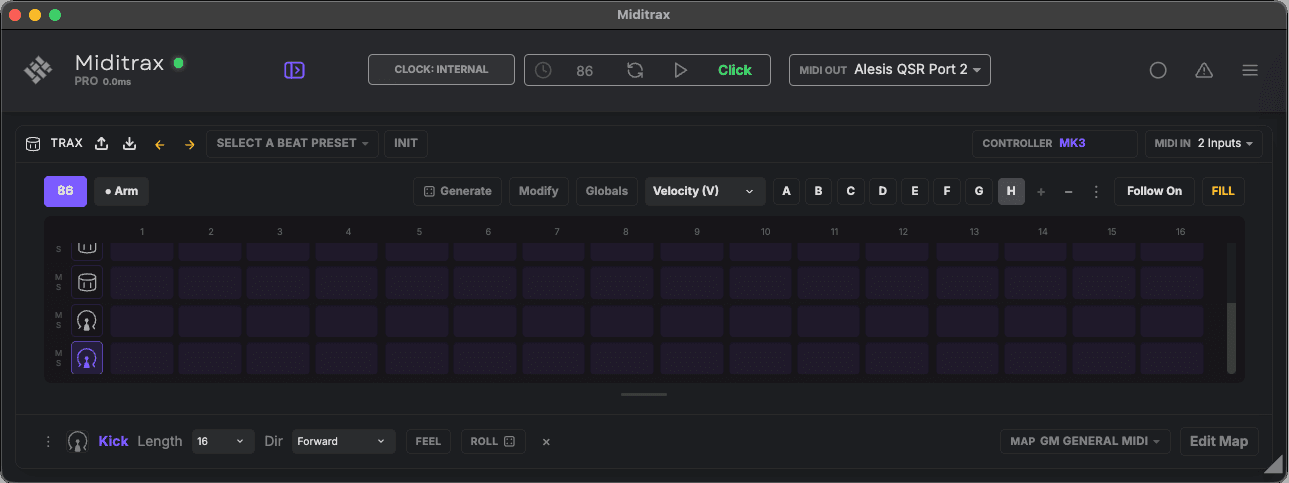
1
2
3
- 1Set MIDI Out to your drum machine, or a virtual port for a plugin in your DAW.
- 2Select your map, bottom right, so the lanes match its kit.
- 3Plug in your controller and click Connect on the CONTROLLER box.
Interactive help
Hover over or tap any button, knob or the pads, and the screens show what it does.
Start here · MK3
1
Browse beats
- 1.Press Browser.
- 2.Turn the big knob to scroll.
- 3.Push to load the beat.
2
Record a beat
- 1.Press Click.
- 2.Turn knob 1 to set your tempo.
- 3.Press Rec.
- 4.Press Play and play the pads.
3
Modify a beat
- 1.Load a beat, or create one.
- 2.Press Mod.
- 3.Tip the big knob to pick a layer, turn it to add more, push for a new dice roll.
4
Let Miditrax create a beat
- 1.Press Auto.
- 2.Turn the big knob to pick a genre.
- 3.Tip it down a row, then push to generate. Push again for another.
5
Change a sound
- 1.Hold a pad.
- 2.Turn the big knob to hear each instrument.
- 3.Let go to keep it.
6
Make it groove
- 1.Press Scene for Global Feel.
- 2.Tip the big knob to pick Swing, Accent, Micro or Velocity, and turn it to set it.
- 3.Press Pattern to set the pattern rate and length.
7
Perform
- 1.Press Perform.
- 2.Hold a white button, or touch the Smart Strip, to loop.
- 3.Let go to rejoin the beat.
8
Save your beat or start over
- 1.Press File.
- 2.If your beat has changes, turn the big knob to Save or Don't Save, and push.
- 3.A new beat opens, ready to start over.
9
Play in Pad Block
- 1.Hold Shift and press Pad Mode.
- 2.Each lane takes a block of four pads that play at 25, 50, 75 and 100% velocity.
- 3.Turn the big knob to move through the lanes. Shift + Pad Mode again goes back.
10
Program a fill
- 1.Press Step, then Notes until the edit tool is Fill.
- 2.Tap a step for a fill note. Tap a beat for a fill, then Fill Mute (it rests during the fill), then a beat again.
- 3.Hold Note Repeat to hear the fill, or to see it with the beat stopped.
11
Step editing
- 1.Press Step.
- 2.Turn the big knob to select a lane.
- 3.Tap a pad to add or delete a beat. Hold it to edit that beat.
Still stuck? Get in touch and choose Miditrax Software.