Using Miditrax in Your DAW
Miditrax is not a VST plugin, but it still works smoothly alongside your DAW. Here is how to set it up in Logic Pro. A similar workflow applies to most DAWs.
How it works
Miditrax sends its drum notes to your DAW over a virtual MIDI port, and follows your DAW’s transport. Your DAW becomes the master clock, so Miditrax starts, stops, and stays in time with your project, playing whichever drum VST you load on a track.
The example below uses Logic Pro and XLN Addictive Drums, but the same two ideas (a virtual MIDI port and clock sync) apply to most DAWs.
Miditrax settings
Set the MIDI output
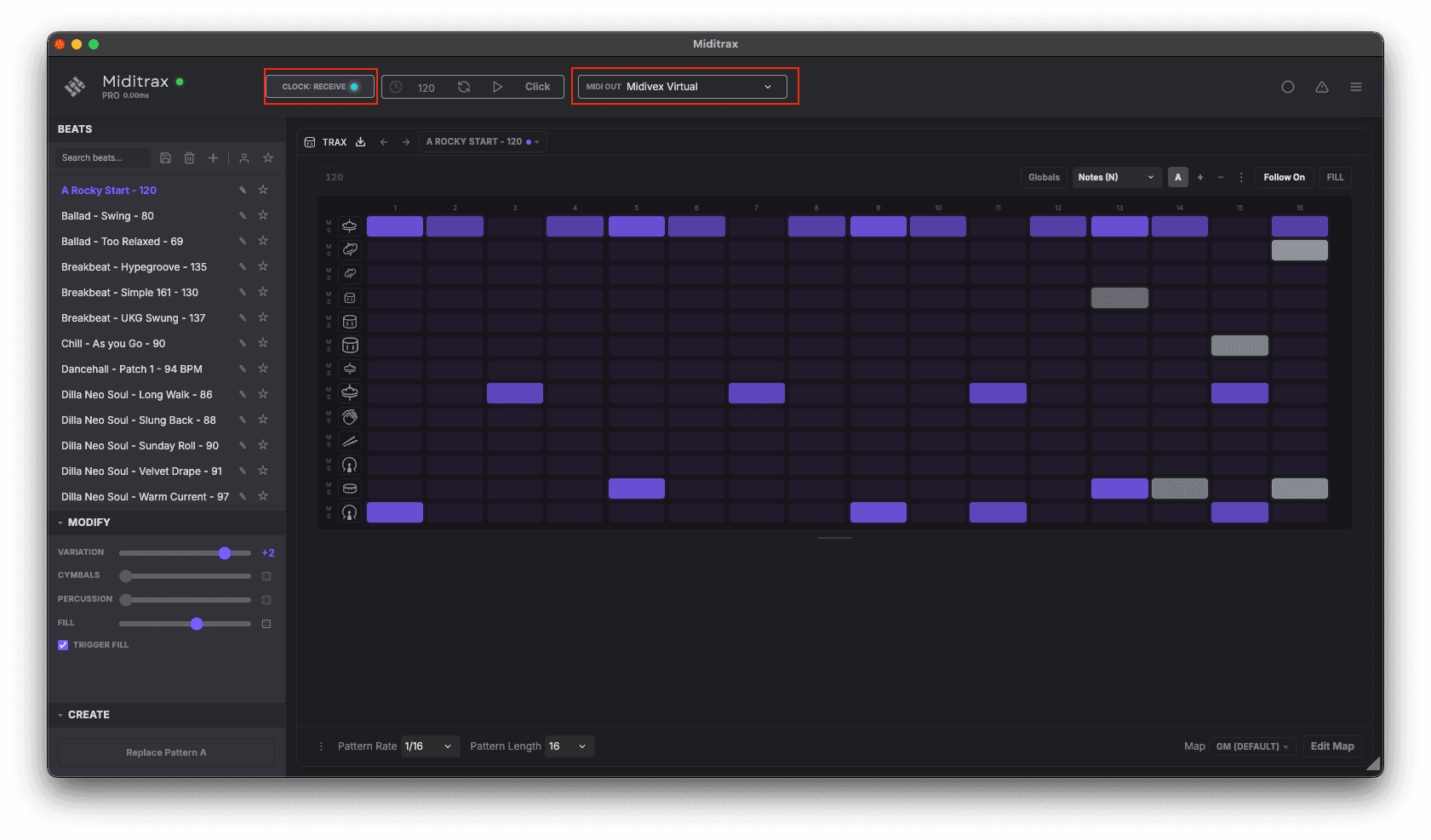
Set the MIDI Out to the Midivex Virtual port. (Miditrax shares the Midivex engine, so its virtual port is named “Midivex Virtual”.)
Set the clock to Receive
Change the Clock to Receive, so your DAW acts as the master clock and Miditrax follows it. Both settings are highlighted in the toolbar above.
Logic Pro setup
Enable the virtual port as a MIDI input
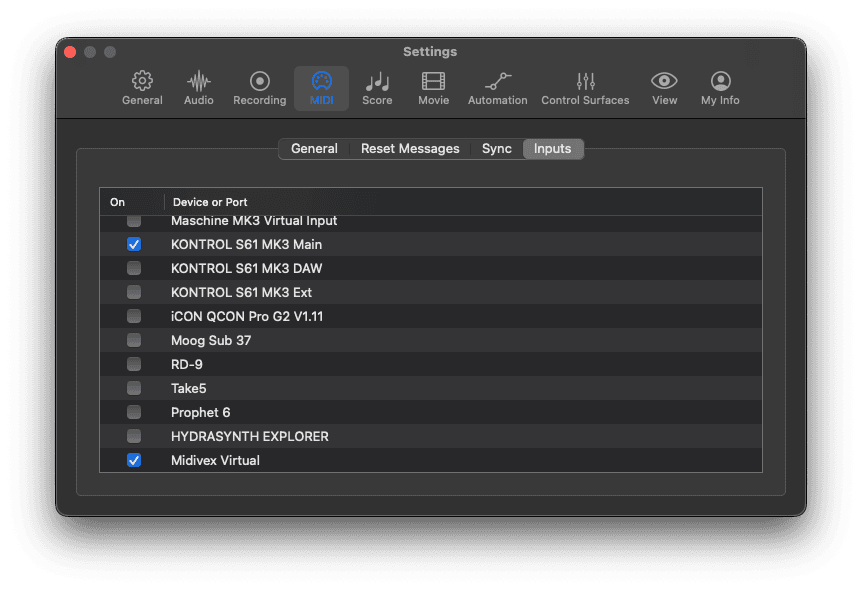
Go to Logic Pro → Settings → MIDI → Inputs and tick Midivex Virtual to enable it as a MIDI input.
Set Miditrax as a clock destination
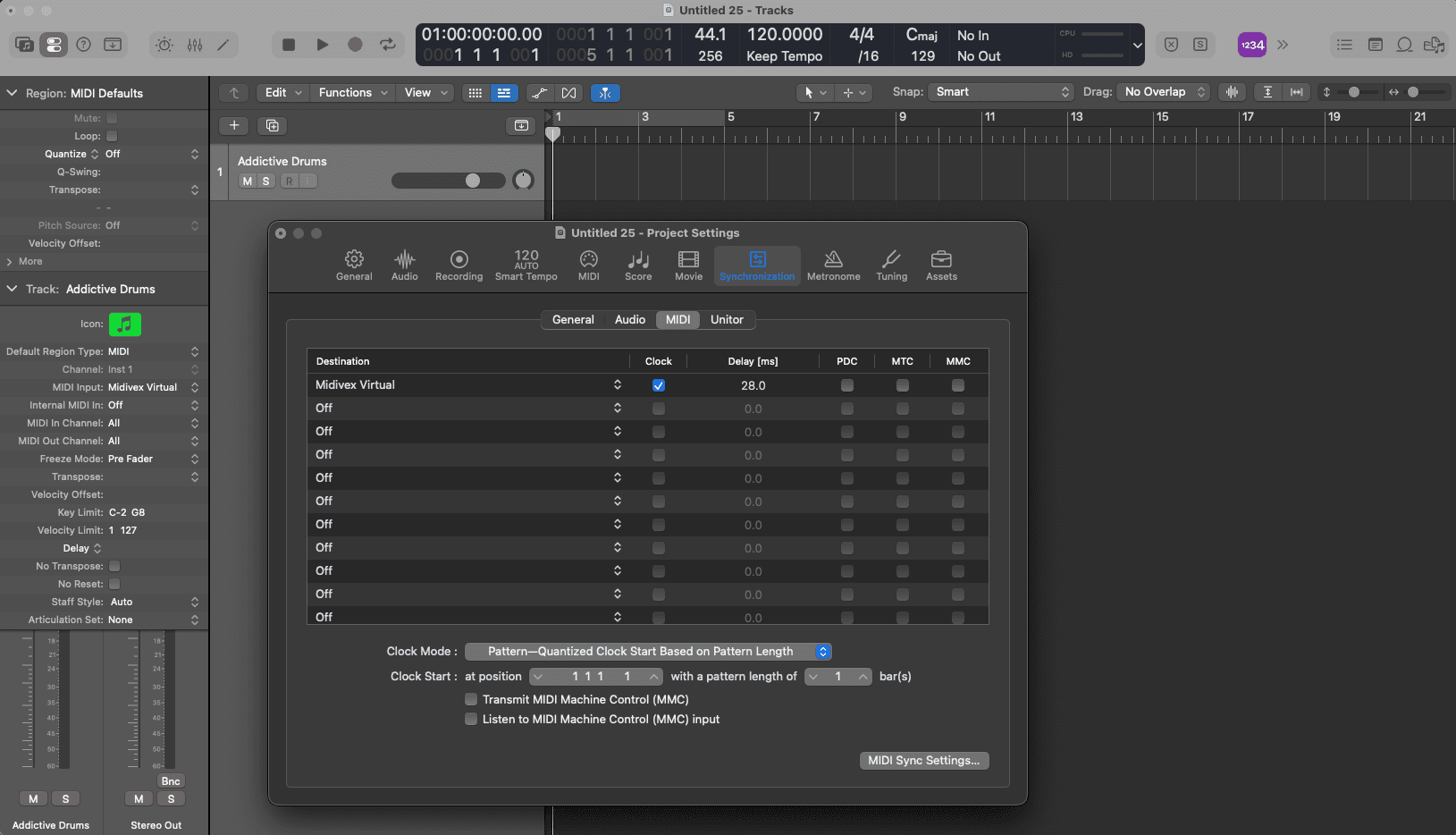
So that Miditrax starts and stops with your DAW, go to File → Project Settings → Synchronization. Tick the clock for Midivex Virtual and set the Clock Mode to “Pattern - Quantized Clock Start Based on Pattern Length”. If timing drifts on a slower computer, adjust the Delay (ms) value to compensate.
Add a track with your drum VST
Add a track and load the drum instrument you want to play. In this example we used XLN Addictive Drums, but any drum VST works. Alternatively, use an external MIDI track to play a hardware drum machine or synth the same way.
Route the track’s MIDI input to Miditrax
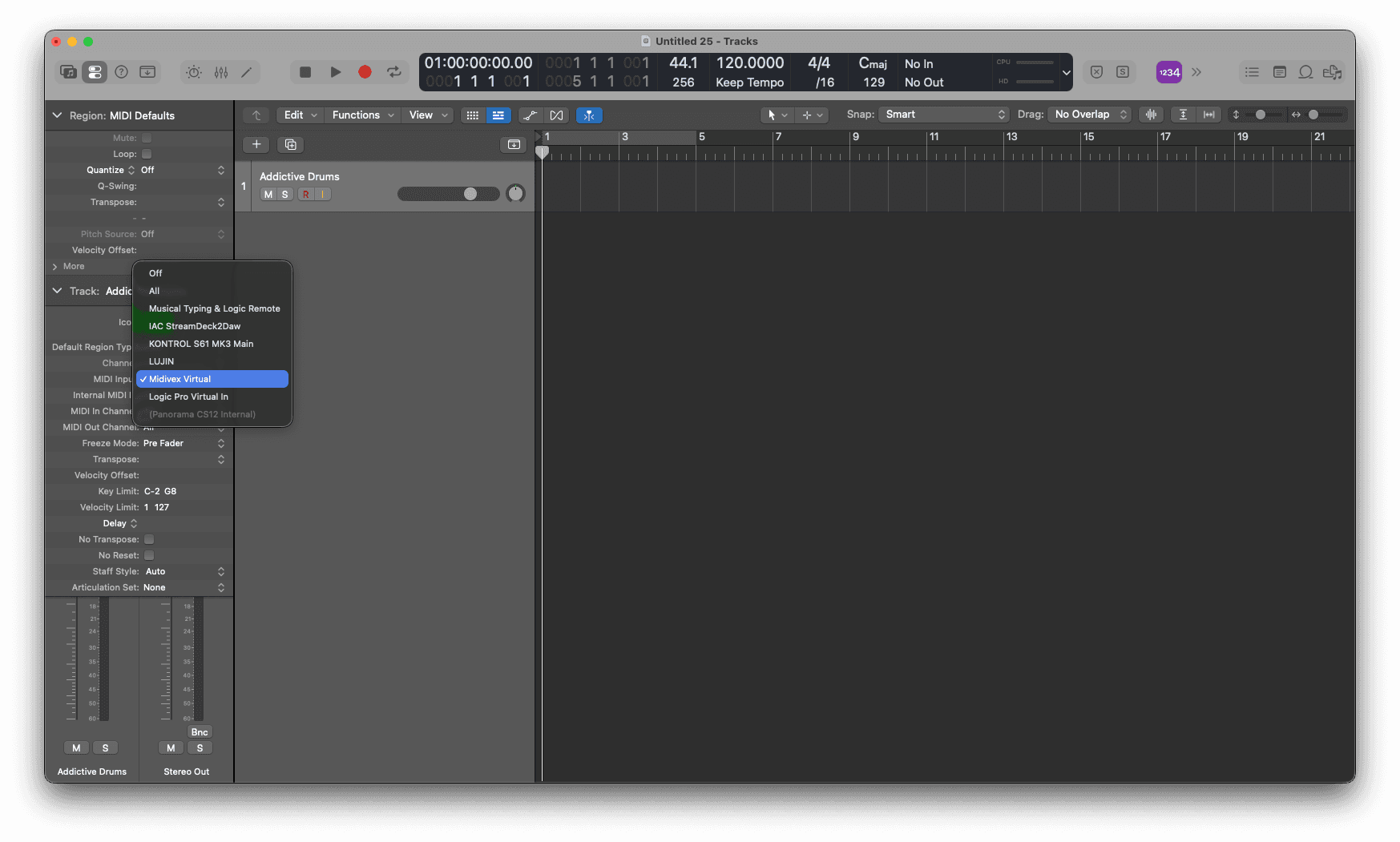
Change the MIDI input for this track to receive from Miditrax by setting it to Midivex Virtual. The track will now play whatever Miditrax sends.
Playing and recording
Now when you start or stop playback in your DAW, Miditrax plays in time. You can record its output straight onto the track, or, if you prefer, use the MIDI Export button in Miditrax and drag the MIDI file onto your DAW track.
Windows
Windows does not include built-in virtual MIDI ports, so you will need the free tool loopMIDI by Tobias Erichsen to create one. Create your virtual port in loopMIDI and it will appear automatically in Miditrax as an available device, then follow the same steps above.