UAD License Detection
How to export your UAD System Profile and import it into Plugoff to see which plugins are authorised, in demo, or expired.
Overview
Plugoff can detect which of your UAD plugins are authorised, in demo, or expired. This works by importing a System Profile exported from UAD Control Panel, part of UAD Console.
UAD Console plugins are the DSP/hardware plugins that run on your Apollo interface. UADx (native/CPU) plugins are detected automatically and shown in their own category in the sidebar without needing to import anything.
UAD vs UADx plugins
UAD (DSP) plugins run inside your Apollo hardware and require an Apollo interface to use. UADx plugins (also known as UA Native or Spark) run on your computer’s CPU like any other plugin and don’t require Apollo hardware.
This import process is specifically for UAD (DSP) plugins. UADx plugins will show up automatically under a separate manufacturer category in Plugoff called UADx.
Step-by-step guide
Find the Import button in Plugoff
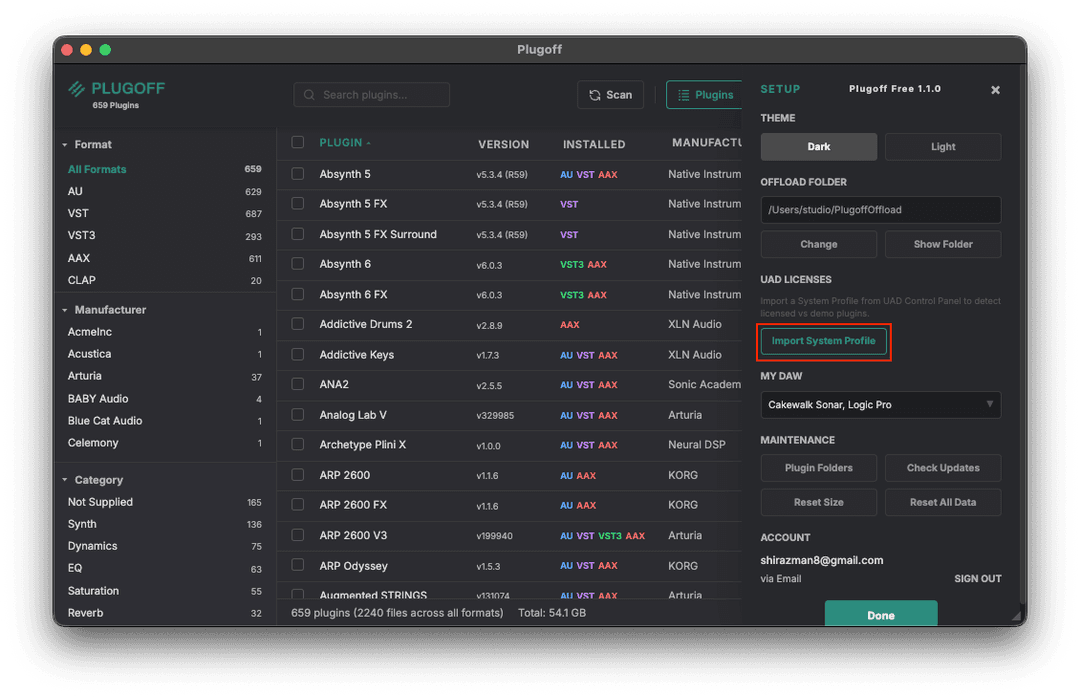
Open the right-hand Setup panel by clicking the menu icon, then click “Import System Profile” to begin the step-through import process.
Open UAD Control Panel
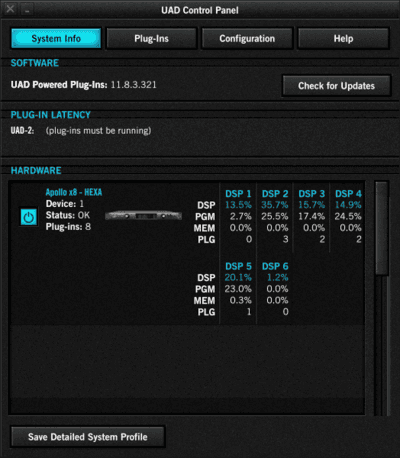
Open the UAD-2 Control Panel. You will see your DSP, PGM, and MEM usage meters.

Open System Info
Click the small down arrow in the top right corner to access the dropdown menu. Select “System Info...” from the list.

Save Detailed System Profile
In the System Info tab, click “Save Detailed System Profile” at the bottom of the window.
Save the file
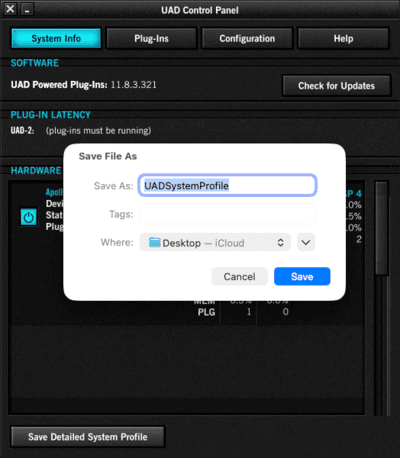
Save the system profile file to a location you can easily find, like your Desktop.
Import into Plugoff
Back in Plugoff, click the “Import Now” button and select the file you just saved. Plugoff will read the profile and categorise your UAD plugins by license status.
After importing
Once imported, your UAD plugins will be categorised in the sidebar under Universal Audio with sub-categories: Authorized, Demo, Not Started, Trial Expired, and Unmatched.
You can also import from the Setup panel at any time. Open Setup (top right), find the UAD Licenses section, and click “Import System Profile”.
What does Unmatched mean?
Unmatched means Plugoff couldn’t confidently match a plugin to an entry in your System Profile. This happens because Universal Audio aren’t always consistent with their naming. The plugin filename on disk can differ from what’s listed in the profile report.
For example, the profile might say “UAD Empirical Labs EL8 Distressor Compressor” while the plugin file is simply “UAD Empirical Labs Distressor”.
Plugoff uses multiple matching strategies and catches the vast majority, but when it can’t be certain, the plugin is placed in the Unmatched category. These plugins still work fine. You would just need to review them manually and offload any you don’t own or need.